Find a word, line or item ID anywhere in your world
The case: a bug report from the game says "itm_ember_blade has the wrong description". You paste the ID into LoreHub's search and it finds the Ember Blade document, whose Code field holds that ID. Later you want to check how Maren words her oath in every scene: search for swear and you get each line she says it in, with its node.
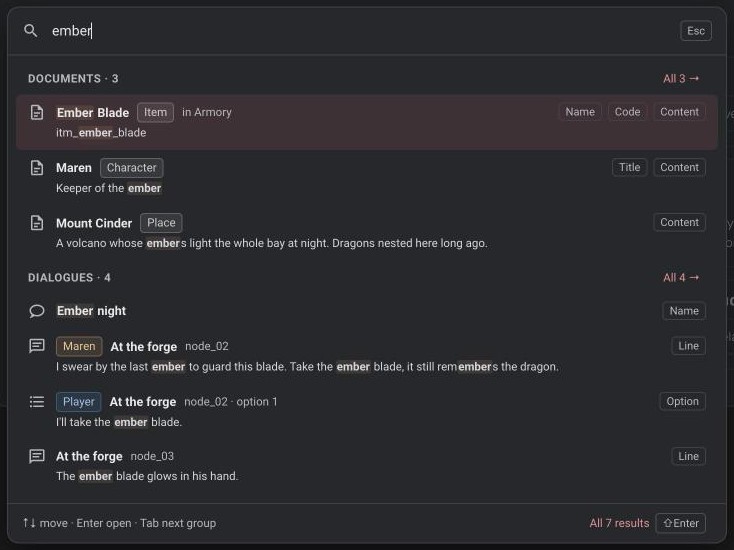
The short answer: click Search world in the top bar, or press ⌘K on a Mac or Ctrl K on Windows, and type. Press Enter to open a result or ⇧Enter to see all of them.
1. Search from anywhere in your world
- Click Search world in the top bar, or press ⌘K (Ctrl K on Windows). It works on every page of a world, the Dialogue Builder too.
- Type at least two characters. Results show up as you type, in two groups: Documents and Dialogues, five of each.
- Use ↑ and ↓ to move, Tab to jump to the next group, and Enter to open a result.
- Press ⇧Enter, or click All … results, to open the Search page with every result.
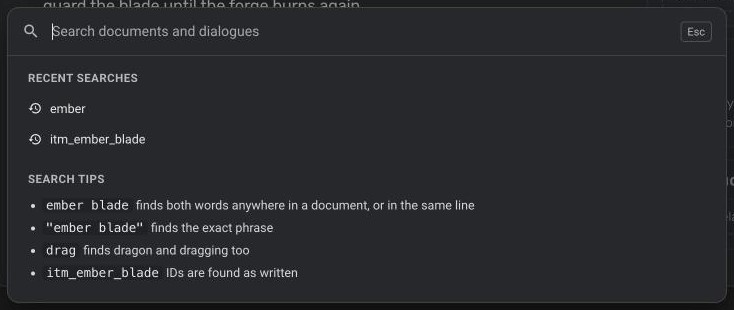
Before you type, the box shows your recent searches in this world and a few search tips.
2. What is searched
| In documents | In dialogues |
|---|---|
| Names | Dialogue names |
| Content | Lines |
| Text, rich text, number and choice fields | Player options |
| Tags |
Yes/no fields, images, document links and document lists aren't searched, and neither are relations, timeline events or Meta Area notes.
3. How words match
- Every word must be there, in any order. ember blade finds a document with ember in its name and blade in its Content. In a dialogue, all the words must be in the same line or option.
- Case and accents don't matter. cafe finds Café.
- Parts of words count. drag finds dragon and dragging.
- Quotes keep a phrase together. "ember blade" finds only those two words side by side.
- IDs are found as written. itm_ember_blade and npc.maren.01 are one word each.
Names come first in the results, then fields, then Content, then tags. For dialogues, a dialogue's name comes before its lines and options.
4. Narrow it down on the Search page
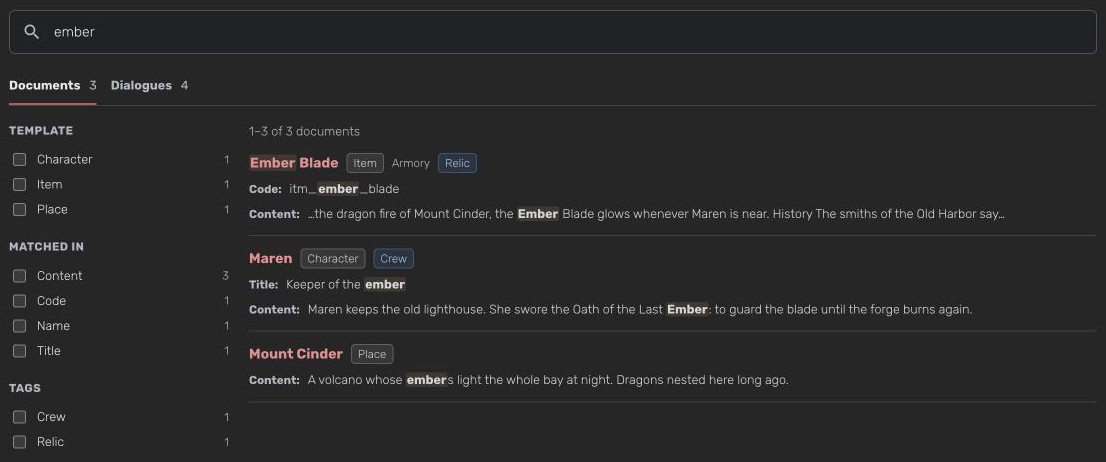
- Open the Search page with ⇧Enter or All … results.
- Pick the Documents or Dialogues tab. Each shows how many results it has.
- Tick filters on the left:
- Documents: Template, Matched in (Name, Content, a field or Tags) and Tags.
- Dialogues: Game, Found in (Dialogue name, Line, Player option) and Speaker.
- Each document shows up to three passages with your words marked, labelled with the field they come from. Each line shows its speaker, the dialogue, its scene in the Route Planner and its node.
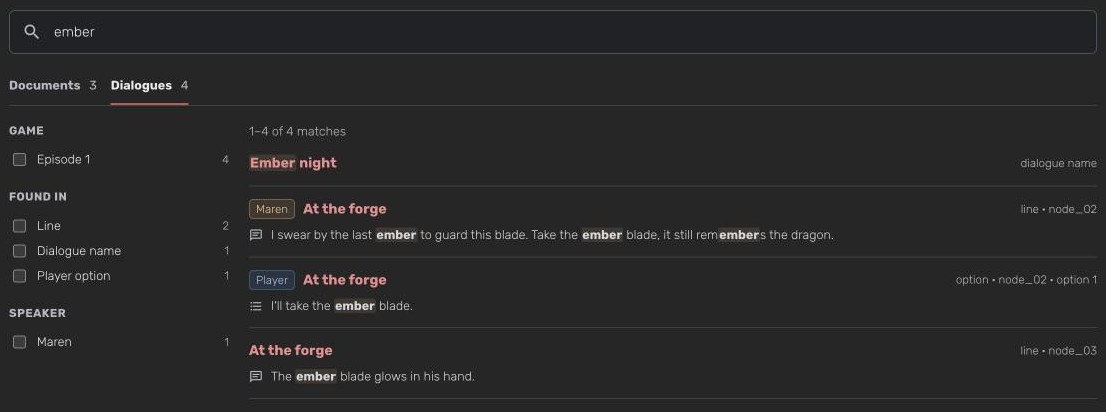
5. Open a result
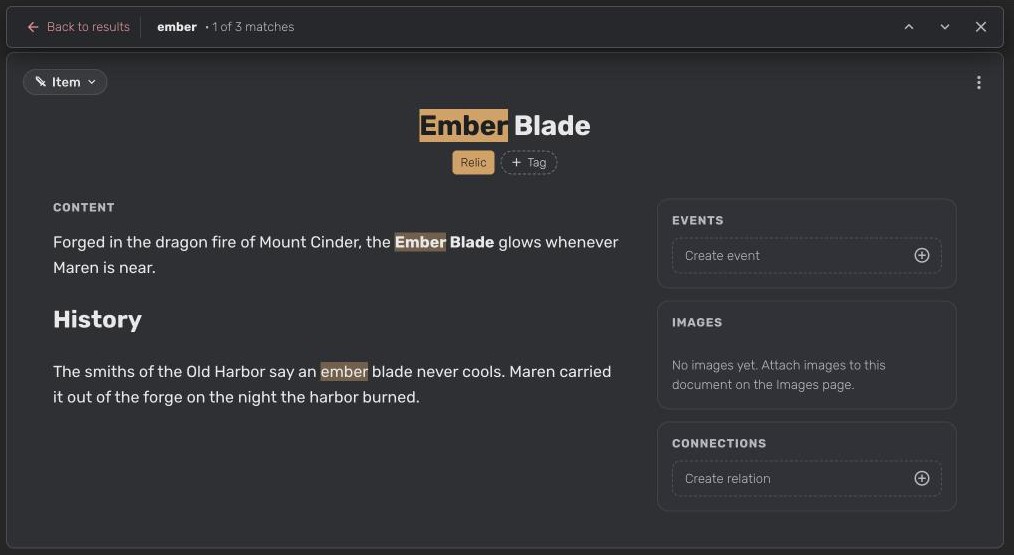
A document opens with your words marked in its name, fields and Content, and a bar on top: ember · 1 of 3 matches. Press Enter or ↓ for the next match and ⇧Enter or ↑ for the one before. ← Back to results takes you back to the Search page. Close the bar with Esc or ×; it also goes away as soon as you start editing.
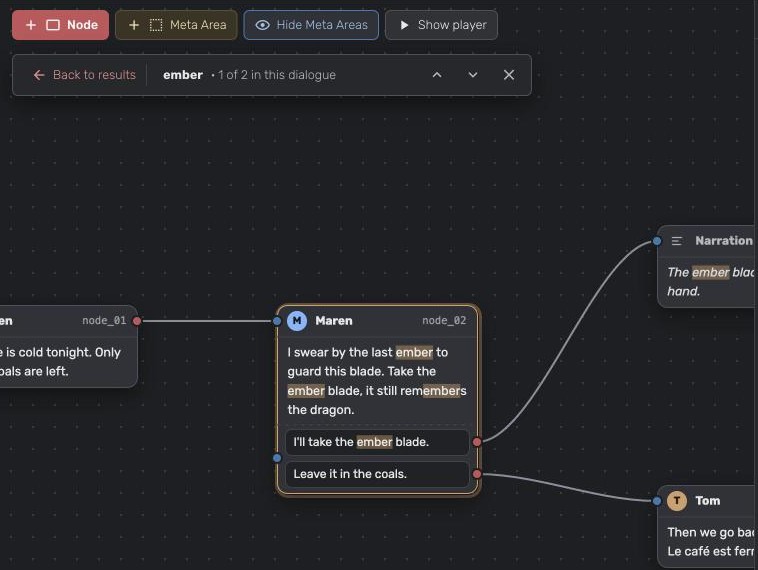
A line or player option opens the Dialogue Builder on its dialogue, centred on the node, with the node outlined in amber and the words marked in its line and options. The bar says 1 of 2 in this dialogue, and ↓ moves the canvas to the next node that matches. Nothing is selected, so you can't change anything by accident.
Variations
Only the name of a document. The Filter box above the document list still matches names only. When no name matches, or when you press Enter, it shows Search in Content and fields →, which opens the Search page.
On a phone. Tap the magnifier in the top bar. Quick search fills the screen, and a dialogue result opens its script at the line.
Older documents. Right after search arrived, LoreHub reads the text of documents written before it in the background. Until that is done, the Search page says Still reading the text of … older documents, and those documents are found by their name and fields only.
In your game
Search is a writing tool and isn't part of the export. To find a document or line from your own tools, use the IDs in the export, or ask an AI agent through the LoreHub MCP server: its search_world tool searches the same document text and dialogue lines.
Did this answer your question?
More in Worldbuilder
Still need help?
Can't find what you're looking for? Ask us, we read every question.