Give a character a race from your lore
The case: your world has races, and each race has its own document: Elf, Human, Dwarf. Legolas is an elf. You want his page to say so with a link to the Elf document, picked from a short list, so nobody types Elves or elf by hand.
The short answer: tag every race document Race, then add a field of type Document list that takes its documents By tag = Race. Set it to Elf on Legolas's page.
1. Make the race documents and tag them
- Open Documents and click New Document. Name it Elf and save.
- Under the title, click + Tag. In Create new tag, type Race, pick a colour and click Create.
- In Add or remove tags for "Elf", click Race so it's checked, then click Close.
- Do the same for Human and Dwarf: they already have the Race tag to pick.

2. Add a Race field
- On any document, click the template menu at the top left (it says Document) and choose Manage templates.
- Open the Fields tab and click New field.
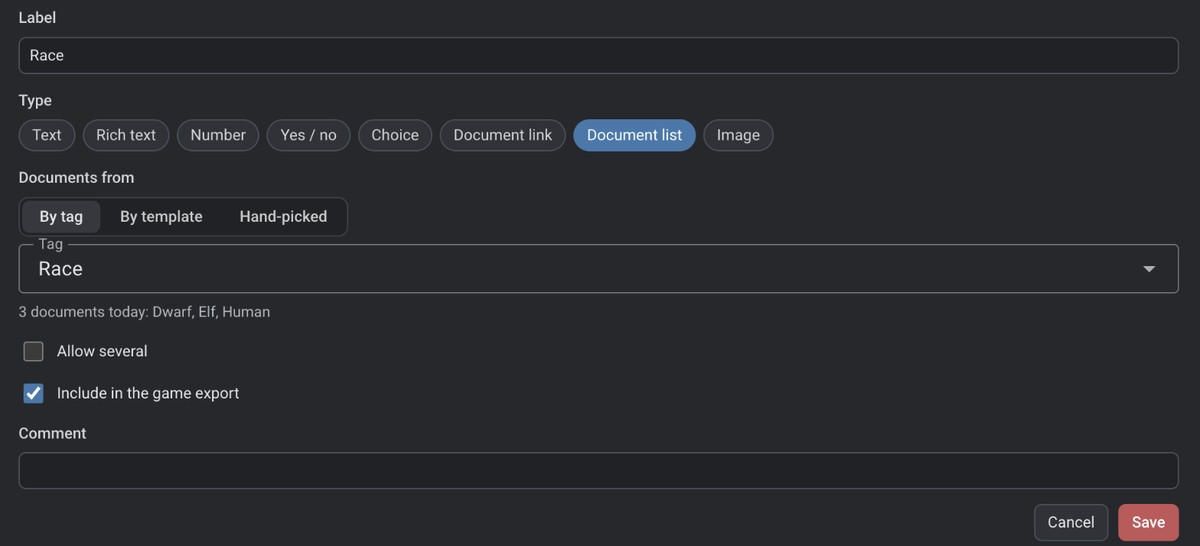
- For Label, type Race. For Type, pick Document list.
- Under Documents from, keep By tag and pick Race in Tag. The line below lists the documents it can hold today: Dwarf, Elf, Human.
- Leave Allow several off: a character has one race.
- Click Save.
3. Put the field on a character template
A field shows on a document through its template. If you don't have a character template yet:
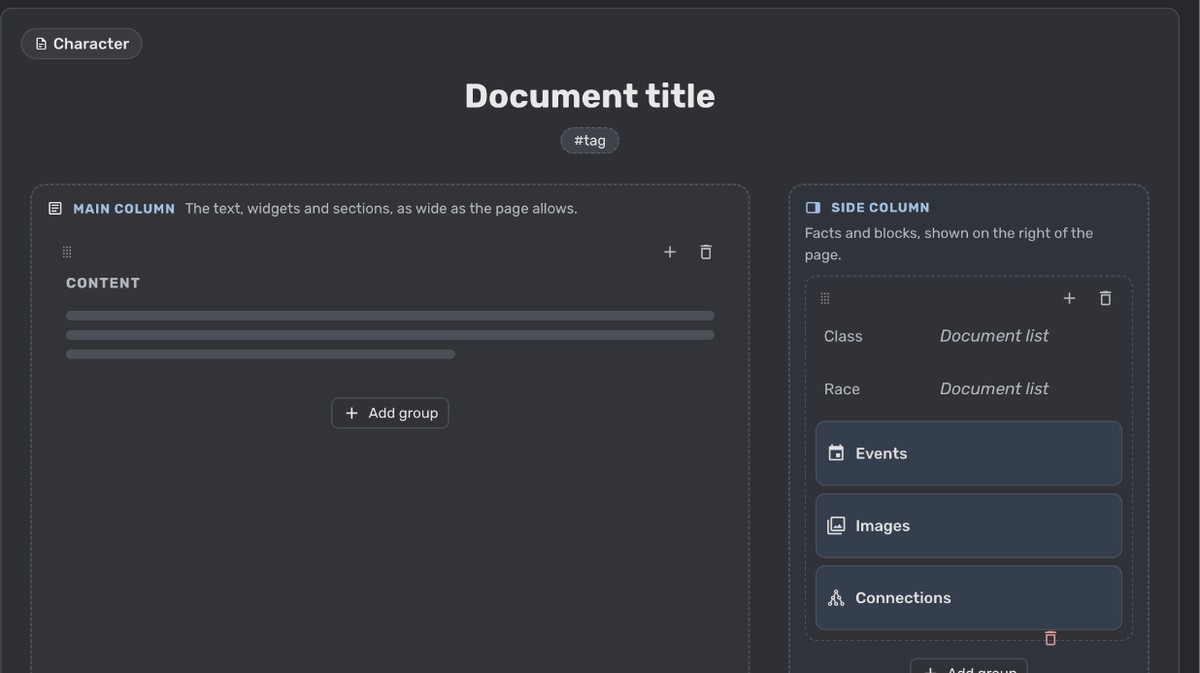
- In Templates and fields, open the Templates tab and click New template (or Blank template). Name it Character and click Create.
- In the side column, click + on a group and pick Race. You can also drag it there from Fields that are not on the page.
- Click Save, then close the window.
4. Make Legolas an elf
- Create a document Legolas.
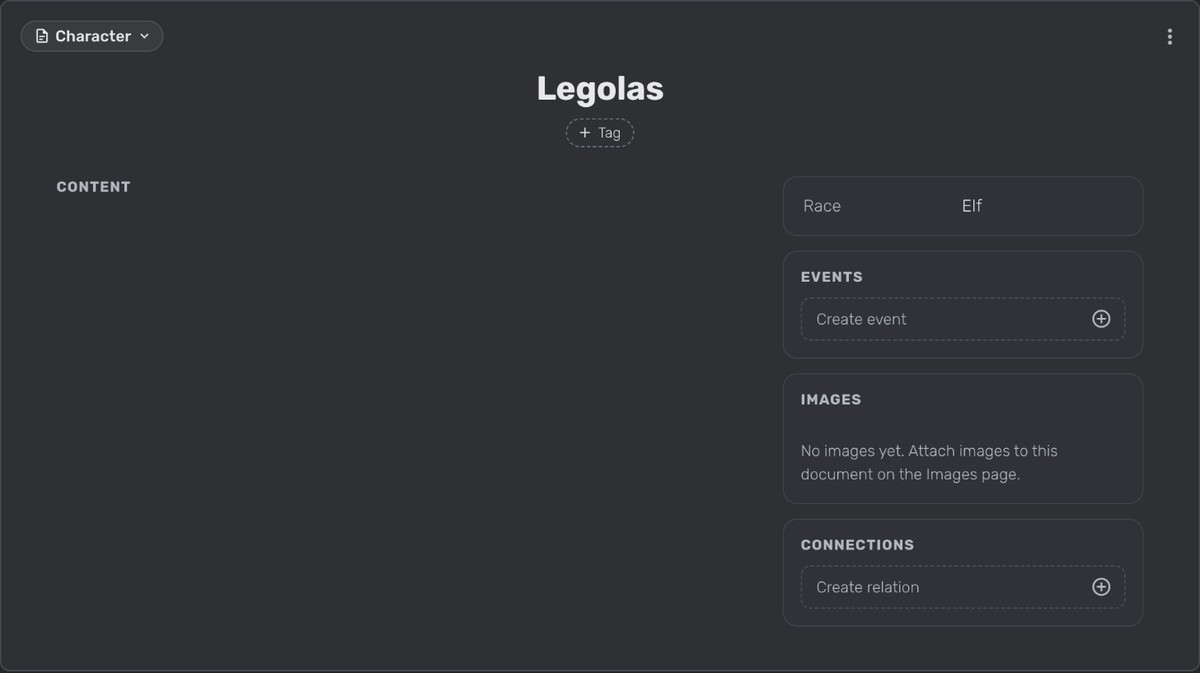
- Click the template menu at the top left and pick Character. The Race field appears in the side column.
- Click No document next to Race and pick Elf.
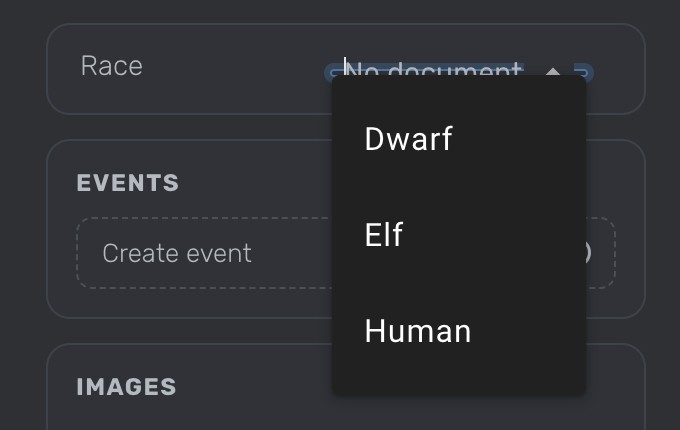
The list only offers documents with the Race tag. Tag a new document Race (Orc, say) and it shows up in the list right away.
When a document leaves the list
If Elf loses its Race tag later, Legolas keeps Elf. LoreHub doesn't change values behind your back: it marks the value with an amber warning that says why, and it stays until you remove it or tag Elf again.
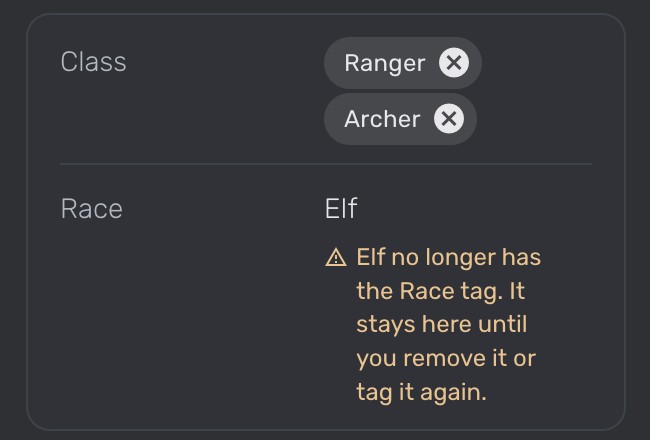
The same happens when a document changes template, is taken off a hand-picked list, or the field's tag or template is deleted. When a document is deleted, it's removed from every value that held it.
Variations
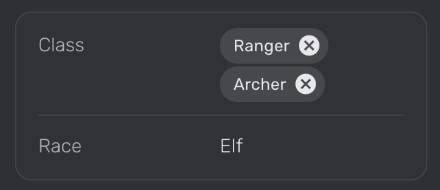
Several values: classes. A character can be a Ranger and an Archer. Make a Class field with Allow several turned on. In the picker, check every class that applies.
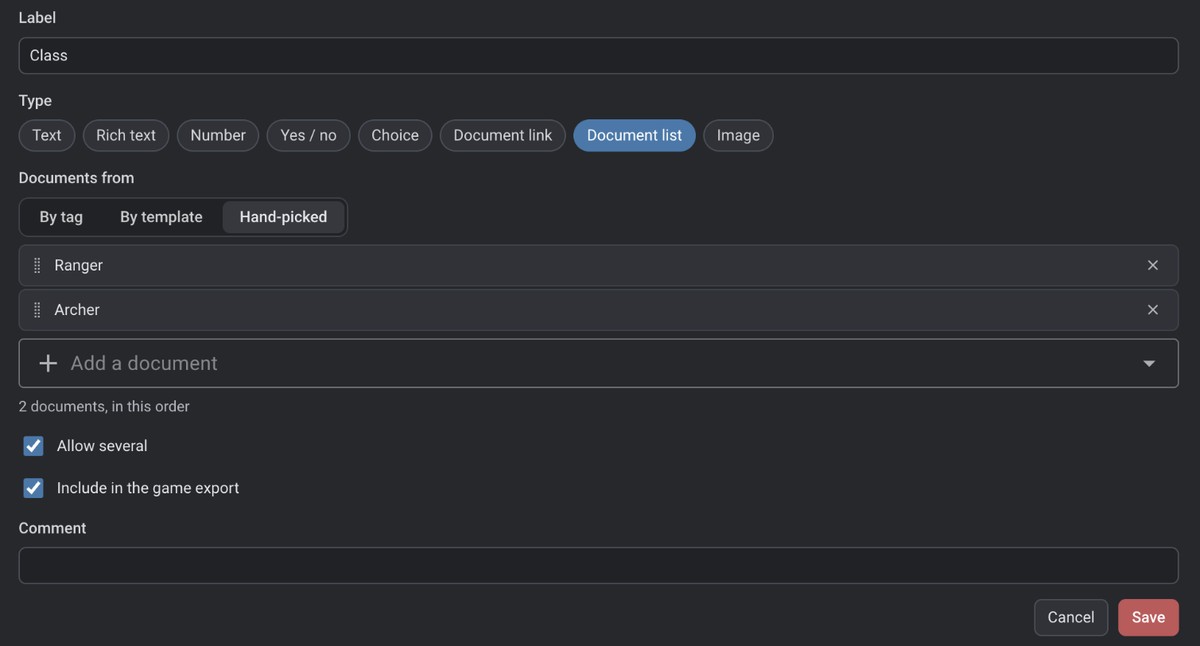
Hand-picked. Choose Hand-picked under Documents from and add the documents one by one with Add a document. Drag them to set the order the picker shows. Good for short, fixed lists like classes.
By template. Choose By template to offer every document that uses a template, for example a Faction field that lists every document using a Faction template. Picking the built-in Document template means documents with no template.
One link, no list. For a single link to any document in the world, use a Document link field instead.
In your game
Include in the game export is on by default for a Document list field, the same as for other fields. Turn it off for fields that only matter to your writers. Document field values aren't in the JSON export yet; this setting decides whether the field goes into it once they are.
Did this answer your question?
More in Worldbuilder
Still need help?
Can't find what you're looking for? Ask us, we read every question.