Add a template from the catalogue
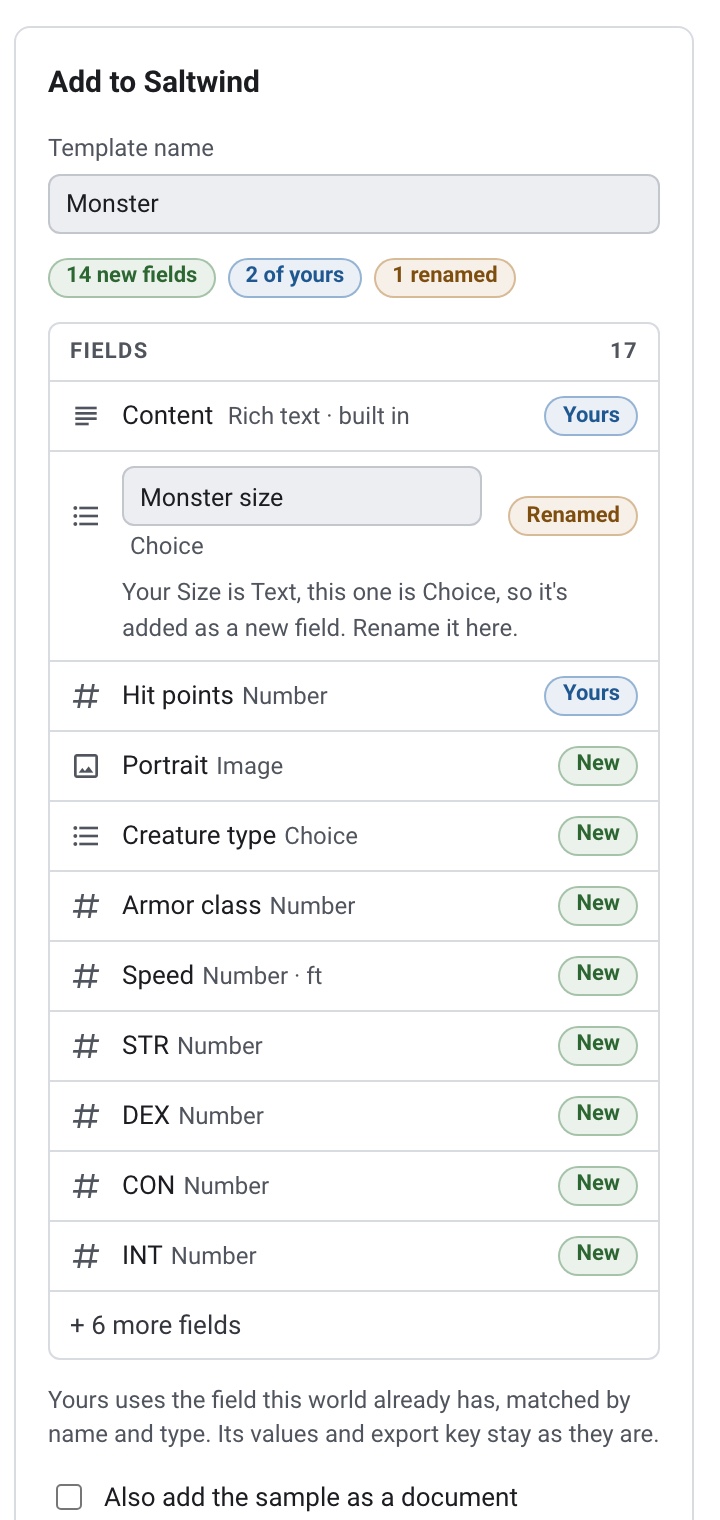
The case: you're preparing a tabletop campaign in a world called Saltwind. You want a page for every monster with its armor class, hit points and ability scores in the same place, without building the fields yourself. Your world already has a Hit points number field and a Size text field from earlier notes.
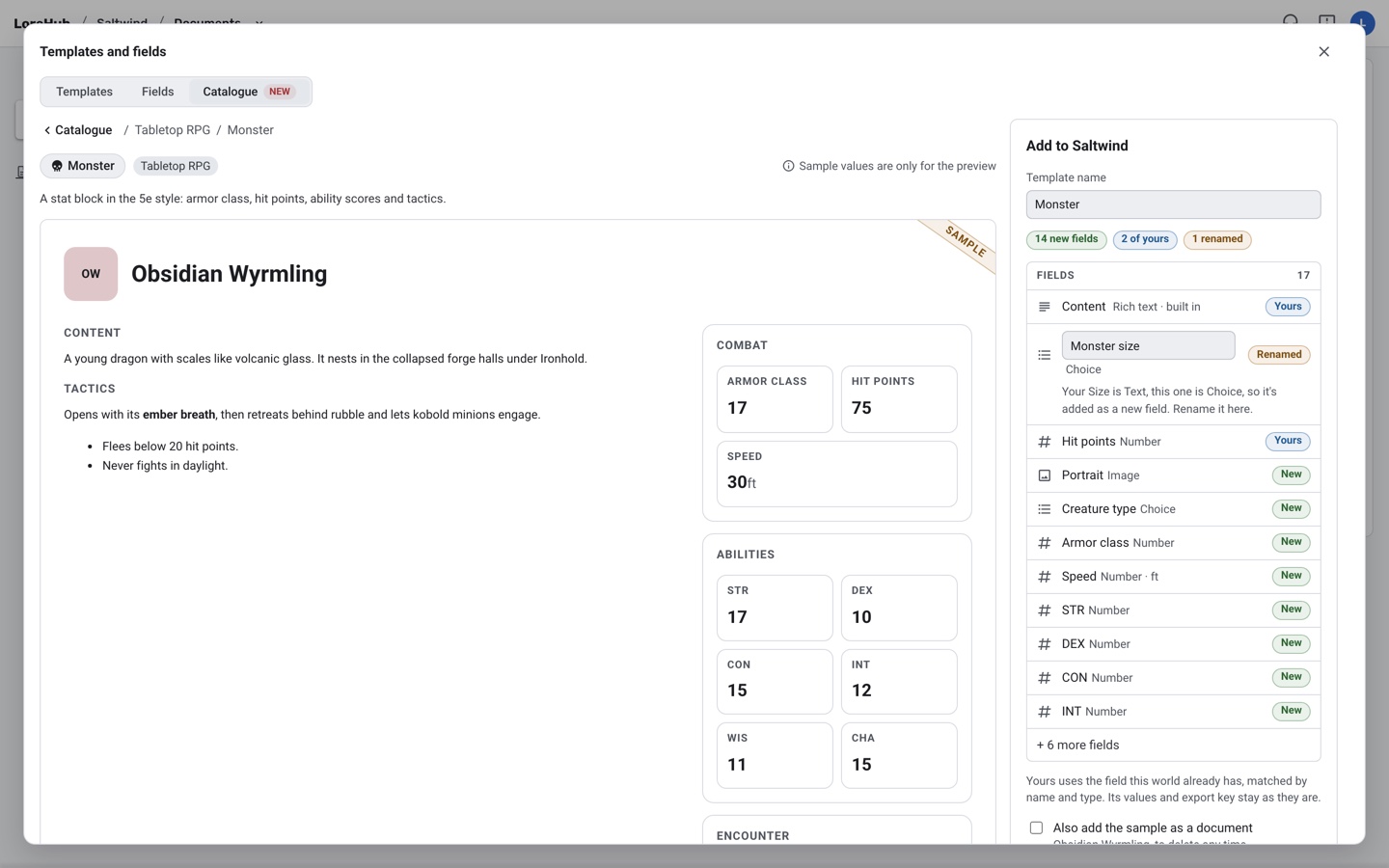
The short answer: open Templates and fields, go to the Catalogue tab, pick the Monster template and click Add template. The catalogue reuses your Hit points field and adds a new Monster size field next to your Size.
1. Open the catalogue
There are three ways in:
- On any document, click the template chip at the top left (it says Document on a document without a template) and choose Browse catalogue.
- In Templates and fields, click the Catalogue tab.
- In Templates and fields, click New template and choose From the catalogue.
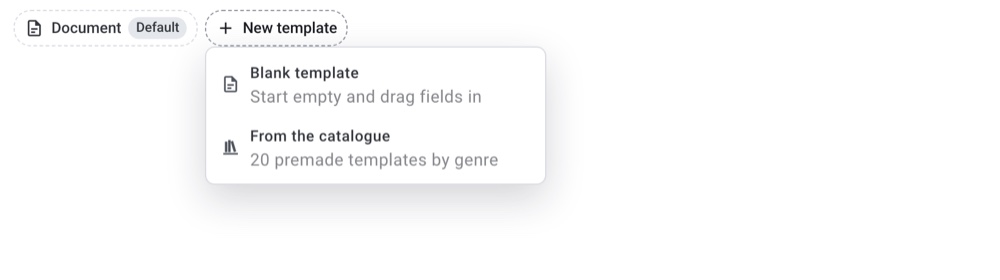
A world with no templates yet also offers the three starter packs and Browse catalogue right on the Templates tab.
2. Find a template
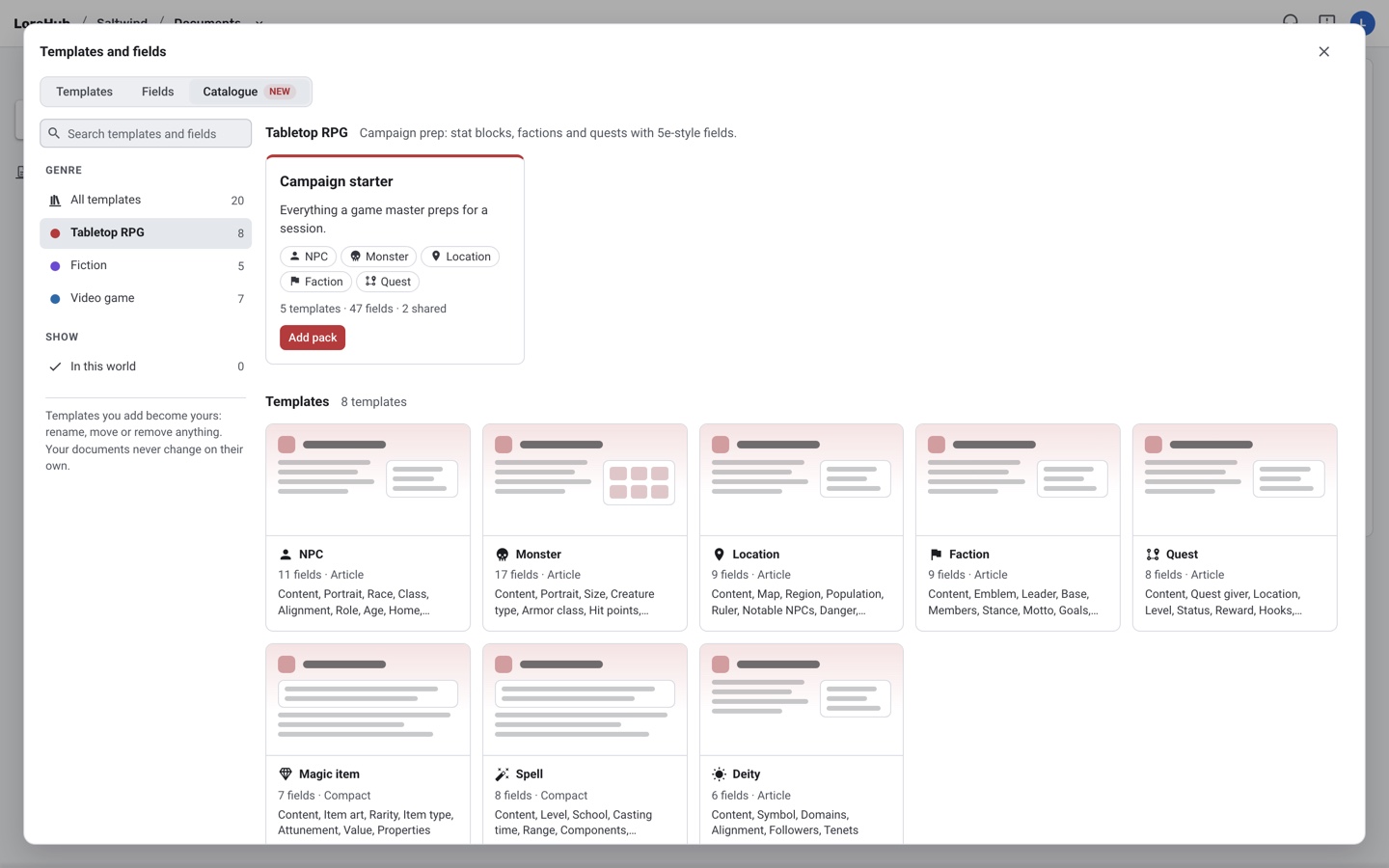
- On the left, pick a genre: Tabletop RPG, Fiction or Video game, or stay on All templates.
- To find something specific, type in Search templates and fields, for example armor or quest. It searches template names and field names.
- In this world shows the catalogue templates you've already added.
- Click a template's card to open its preview.
3. Check what it adds to your world
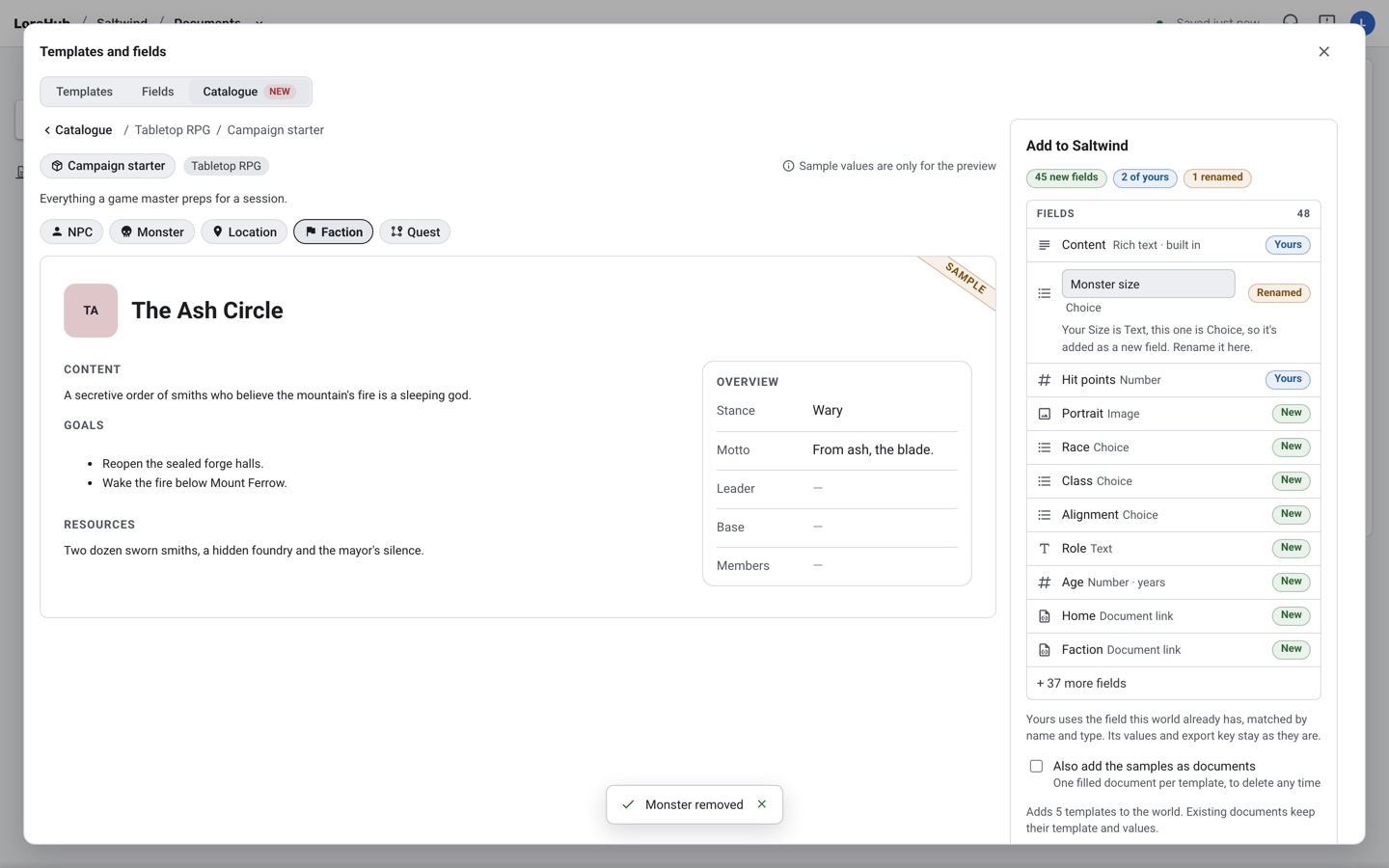
The preview shows a sample page filled with example values, laid out the way your documents will be. The sample values are only there for the preview.
The panel on the right lists every field the template has, with a badge:
- Yours: your world already has a field with the same name and type, so the template uses it. Its values and export key stay as they are.
- New: the field is created when you add the template.
- Renamed: your world uses that name for a different type of field, so the template adds its own field under a new name. Here your Size is text and the catalogue's is a choice, so it's added as Monster size. You can type another name in the box.
4. Add it
- Change the Template name if you like, for example Beast.
- Tick Also add the sample as a document if you want the filled example in your world too. It's a normal document you can edit or delete.
- Click Add template.
LoreHub switches to the Templates tab with the new template selected. A note above it says which catalogue template and version it came from, and a message at the bottom says how many fields were added and reused.
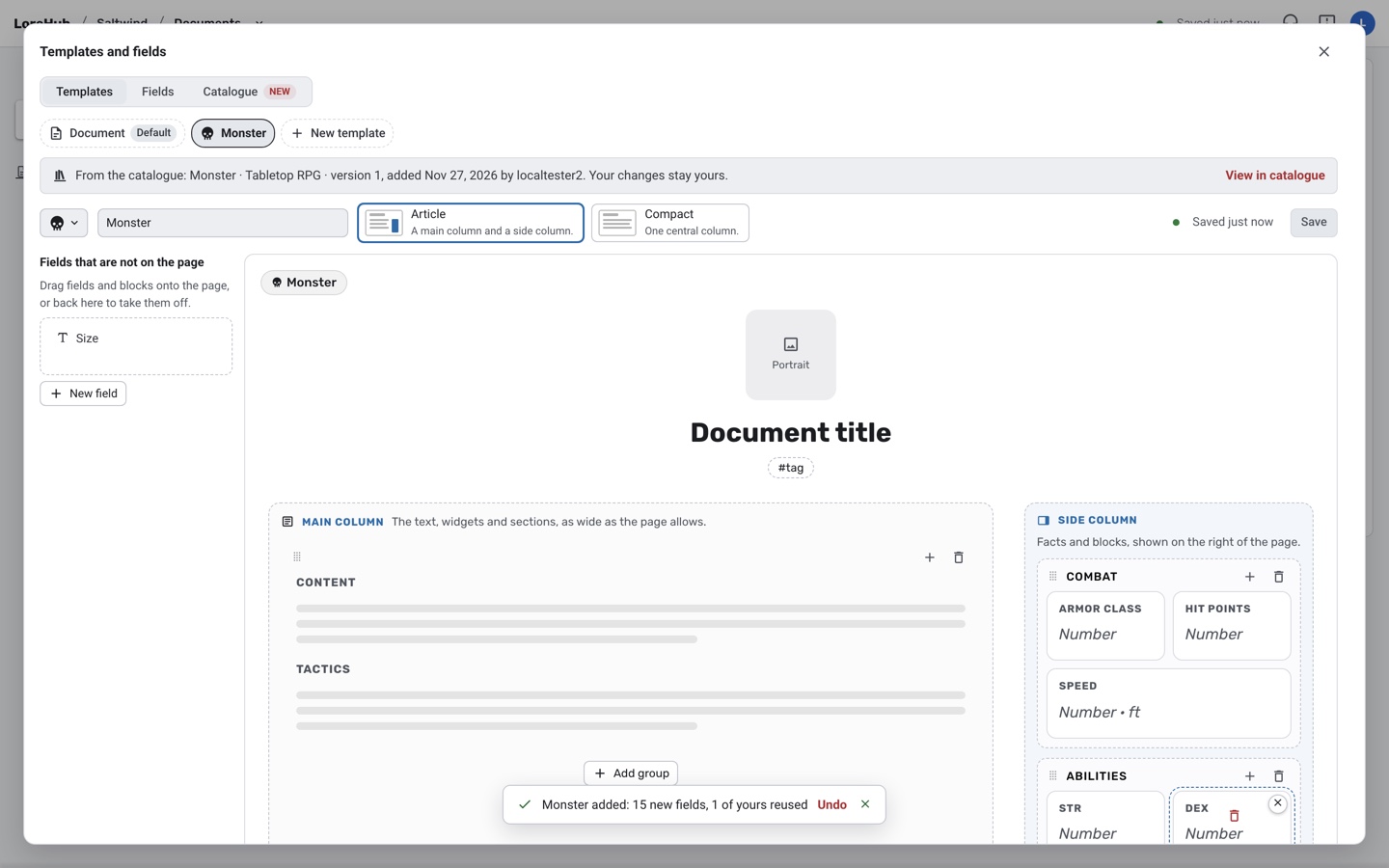
Changed your mind? Click Undo in that message. It removes the template and the fields it created, as long as no document has a value in them yet. Your own fields stay.
5. Add a whole starter pack
A pack adds four or five templates at once: Campaign starter (NPC, Monster, Location, Faction, Quest), Novel starter (Character, Place, Organisation, Object) or RPG game data (Character, Enemy, Weapon, Item, Ability). Fields the templates share, like Portrait or Home, are created only once.
- Click Add pack on the pack's card.
- Click the template names above the sample to see each one's sample page.
- Tick Also add the samples as documents for one filled document per template, then click Add pack.
6. Fill in a list of documents
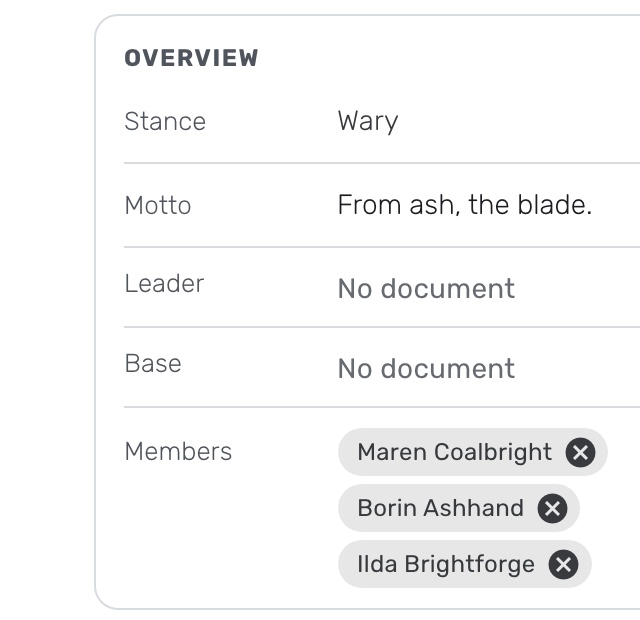
Some catalogue fields hold several documents: a faction's Members, a location's Notable NPCs, a deity's Followers. They're Document list fields. When the template they list (here NPC) comes in the same pack, or your world already has it from the catalogue, the list picks from that template's documents.
- Open a faction document, for example The Ash Circle.
- Click Members and pick the NPCs. Only documents that follow the NPC template are offered.
- Click the cross on a name to take it out of the list.
If the template a list should pick from isn't in your world, the field starts as a Hand-picked list. To change where it picks from, open Templates and fields, then Fields, click the field and change Documents from to By template, By tag or Hand-picked.
Make it yours
The template is a copy: rename it, change its icon, switch between the article and compact layouts, move fields between groups or take them off the page, the same as a template you built yourself. Nothing in the catalogue changes your documents later on.
People who can only view the world can browse and preview the catalogue, but they don't see Add template.
Variations
- Build a template from scratch: New template → Blank template, then drag fields onto the page.
- Add the same template twice: it gets the next free name, like Monster 2, and reuses the fields the first one created.
In your game
Each field keeps a fixed export key, and catalogue fields reuse yours rather than duplicating them. Document field values aren't part of the dialogue export yet.
Did this answer your question?
More in Worldbuilder
Still need help?
Can't find what you're looking for? Ask us, we read every question.