
Dialogue System for Godot
The LoreHub Dialogue Player addon plays dialogues you export from LoreHub in Godot 4.3 and later. It reads Export Schema v2 JSON and follows the same rules as the player in LoreHub: options, links with conditions, number and boolean variables, played and selected state, and node meta data. It is pure GDScript, so it works in the standard and .NET builds of Godot and in every export target, web included.
The addon is free and open source under MIT: lostwood-games/lorehub-dialogue-player-godot.
1. Install the addon
In the Godot editor open the Asset Store tab, search for LoreHub and install LoreHub Dialogue Player. You can also download the zip from the releases on GitHub and copy addons/lorehub_dialogue into your project's addons/ folder.
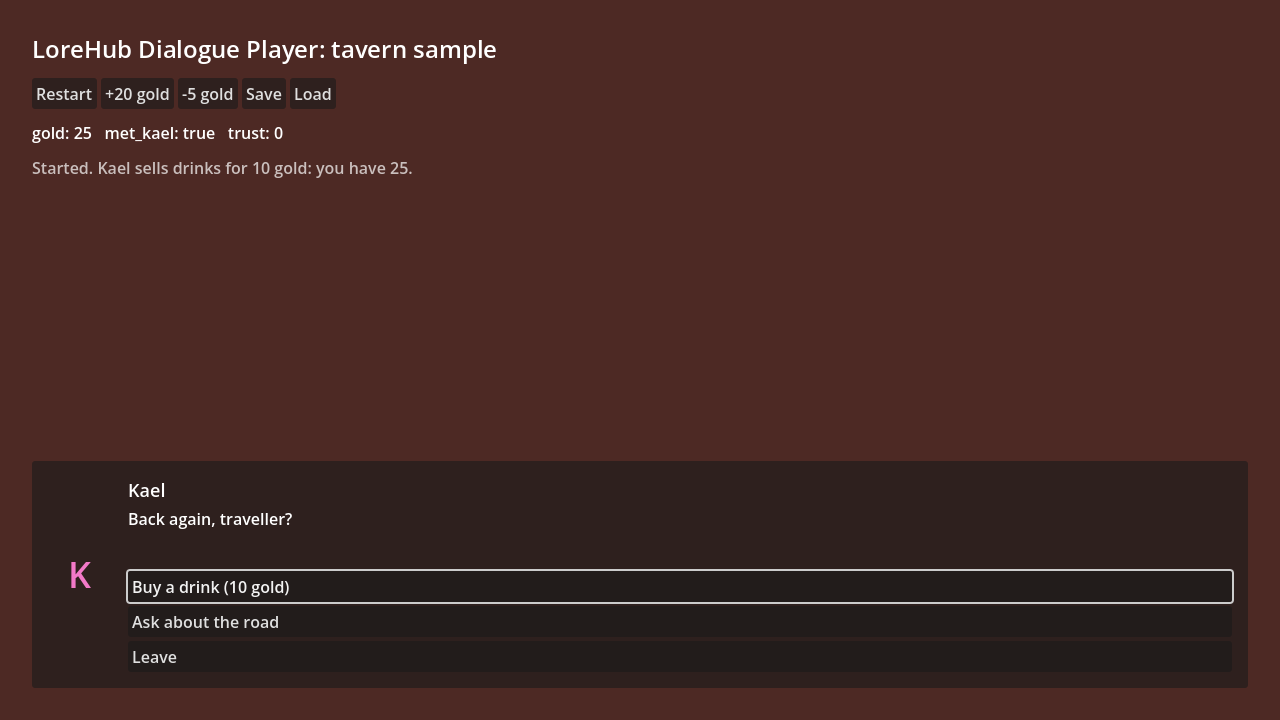
Then turn the plugin on in Project > Project Settings > Plugins.
2. Export the dialogue from LoreHub
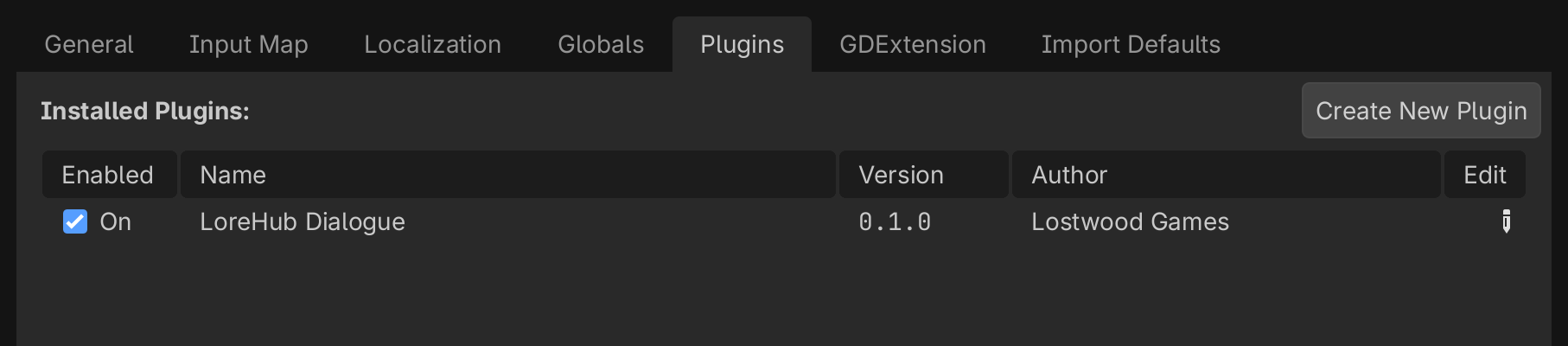
In LoreHub open the dialogue, go to Export and click Export JSON. The .json file holds the dialogue's nodes, options, links, variables, characters and node meta data.
3. Put the file in your project
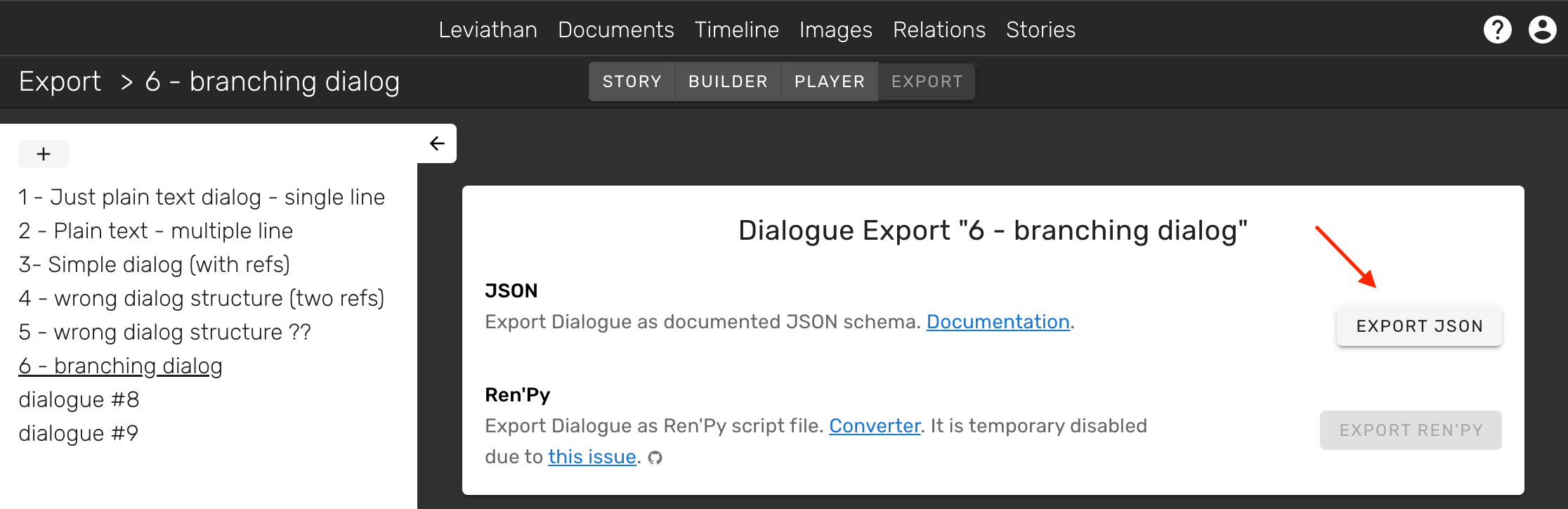
Drop the .json file anywhere under res://, for example res://dialogues/tavern.json. Godot imports .json files as JSON resources and packs them into exported games, so there is nothing to convert. When the dialogue changes in LoreHub, export it again and overwrite the file.
4. Play it with the dialogue box
The addon comes with a small dialogue box you can use without code:
- Drag
addons/lorehub_dialogue/ui/lorehub_dialogue_box.tscninto your scene, or add it with Instantiate Child Scene. - In the Inspector, drag your
.jsonfile onto Dialogue. - Turn on Autostart.
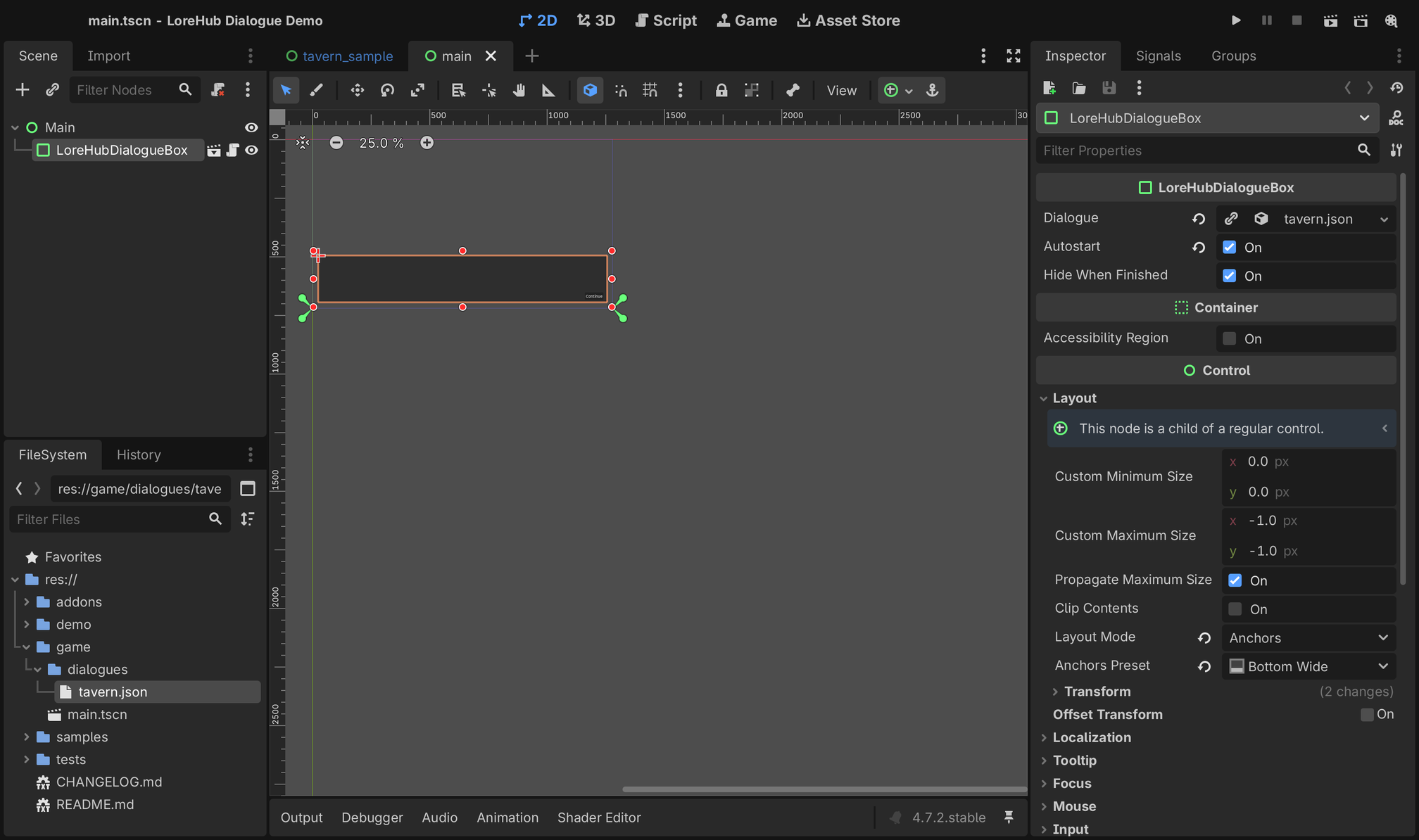
Run the scene. The box shows the speaker, the line, a button per option and Continue for nodes without options, and hides itself when the dialogue ends.
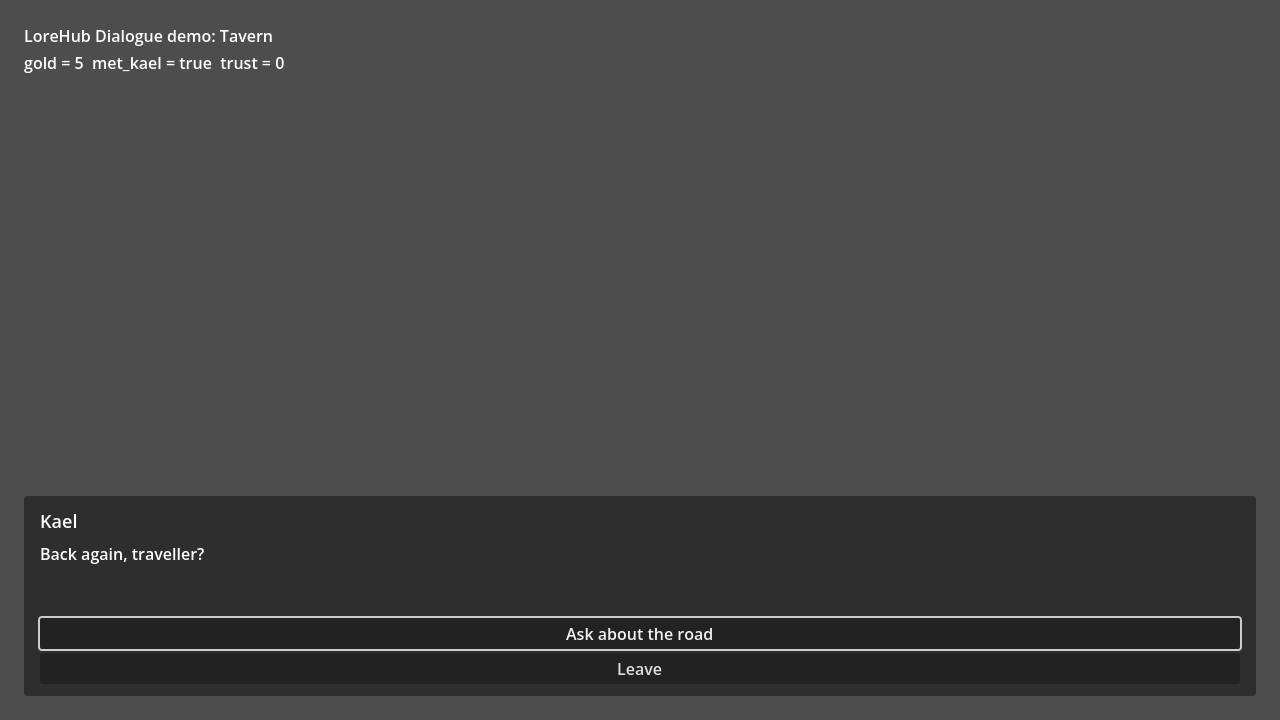
Options whose conditions fail are hidden. In this dialogue "Buy a drink (10 gold)" needs 10 gold and the player has 5, so only two options show. Compare it with the screenshot at the top of the page, where the player has 25 gold.
To start the box from code instead of Autostart:
$LoreHubDialogueBox.play(preload("res://dialogues/tavern.json"))
The box is meant as a starting point: copy the scene and restyle it, or build your own UI on the runner.
5. Your own UI with the runner
LoreHubRunner walks the dialogue and tells your UI what to show with signals. Feed your game's state in by LoreHub variable name before you start, and read node meta data on each line to drive the scene.
var runner := LoreHubRunner.new(preload("res://dialogues/tavern.json"))

func _ready() -> void:
    runner.line_started.connect(_on_line)          # LoreHubLine: speaker_name, speaker_id, text, meta, has_options
    runner.choices_presented.connect(_on_choices)  # Array of LoreHubChoice: id, text, index, available
    runner.dialogue_finished.connect(_on_finished)
    runner.set_variable("gold", PlayerData.gold)   # LoreHub variable by name
    runner.start("", true)                         # true keeps the variable set above

func _on_line(line: LoreHubLine) -> void:
    label.text = "%s: %s" % [line.speaker_name, line.text]
    if line.meta.has("event"):                     # node meta data by name, ints for integer fields
        trigger(line.meta["event"])

func _on_choices(choices: Array) -> void:
    for choice in choices:
        add_button(choice.text, runner.choose.bind(choice))

# On Continue for a node without options:
func _on_continue() -> void:
    runner.advance()
The rules are the same as in LoreHub's player:
- Entering a node applies the variables it sets (number variables can be added to or subtracted from; an
unsignedNumbernever goes below 0) and marks it played. - Options show in LoreHub's order. An option whose conditions fail is hidden; set
runner.hide_unavailable_choices = falseto get it withavailable == false, for example to grey it out. - Picking an option marks it selected and follows its first link whose conditions all pass.
advance()does the same for a node without options. No passing link ends the dialogue. - Conditions can check variables or whether a node was played or an option selected, see state data conditions.
Save and load
runner.get_state() returns a plain Dictionary (variables by name, played nodes, selected options and the current node) that you can store with your save. runner.set_state(state) puts it back, and runner.resume() shows the current line again.
Load at runtime
Dialogues downloaded while the game runs load too: LoreHubDialogue.from_source("user://intro.json") takes a path, a JSON resource, a parsed Dictionary or JSON text.
From C#
The addon is GDScript, so call it through Godot's API:
var script = GD.Load<GDScript>("res://addons/lorehub_dialogue/lorehub_runner.gd");
var runner = script.New(GD.Load<Resource>("res://dialogues/tavern.json")).AsGodotObject();
runner.Connect("line_started", Callable.From<GodotObject>(line => GD.Print(line.Get("text"))));
runner.Call("start");
Sample project
The addon's repository is a Godot project. Open it and press Play to see samples/tavern/, the game screen at the top of this page: a typewriter line with a speaker badge, choices, node meta data driving the scene (mood tints the background, wait delays the line), buttons that feed gold into a LoreHub variable, and save and load in the middle of a dialogue. demo/ shows the drop-in dialogue box.
Versions
The first release is 0.1.0. It reads Export Schema 2.x JSON and refuses a file from an unknown major schema version with an error that says to update the addon. Changes are listed in the changelog.