Storyboard: read a dialogue shot by shot
A branching dialogue is a graph, and nobody briefs an artist from a graph. So boards get redrawn in another tool, and a week later the board and the script disagree. The Storyboard, a new mode of the game page next to Build, Translate and Export, turns the Meta Areas you already drew around your nodes into numbered cards with a reference image each. The cards are the Meta Areas, so the board can't drift away from the script.
What's new
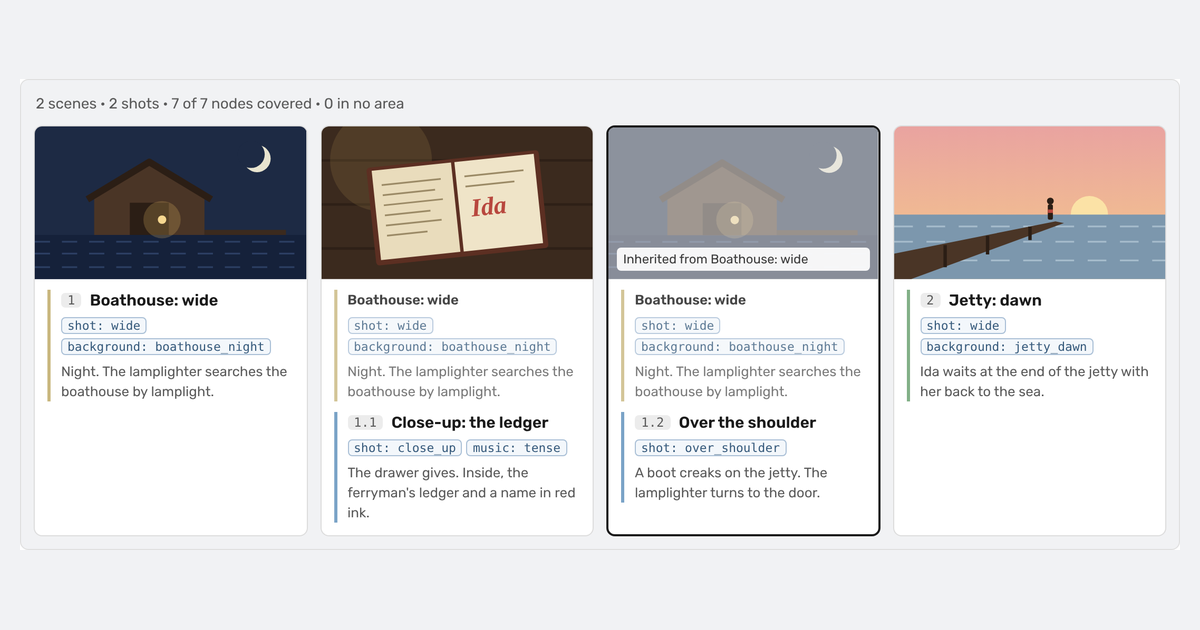
- Scenes and shots from Meta Areas. Turn on Include in Storyboard in a Meta Area's settings and it becomes a card. An area drawn completely inside another one is a shot of it, numbered 1.1, 1.2 under scene 1.
- Cards in reading order. Cards follow the canvas, top to bottom, then left to right. Each shows the area's title, its meta data as chips (like
shot: close_up) and the note. A shot's card shows its scene first, so you see where it happens without flipping back. - Reference images from your gallery. Pick a gallery folder for the dialogue, then drop an image on a card, click No image to upload one, or drag a thumbnail from the sidebar. A shot without its own image shows its scene's image, faded.
- Edit on the board. Change a card's title and meta data in the sidebar and click Save. It writes to the Meta Area itself, so the nodes inside get the new values too.
- From a shot to its lines. The sidebar lists the nodes inside the shot, with the speaker, the first line and a Player choice tag where the dialogue branches. Click one to jump to it in Build.
How to use it
Open a dialogue, draw a Meta Area around each scene and a smaller one inside it for each shot, and turn on Include in Storyboard for each. Then click Storyboard at the top of the game page.
We wrote a step-by-step guide with an example dialogue, from the first area to a board with images: Turn a Dialogue into a Storyboard.
What's next
The board is per dialogue for now. Tell us what you'd use next: a board across a whole story, or exporting it for your artist.
Try it
The Storyboard is available on every plan, and the images use your existing gallery storage. Open a dialogue in LoreHub and give it a try. If something feels off, tell us on Discord or Reddit.