Meta Areas: notes that set meta data on the canvas
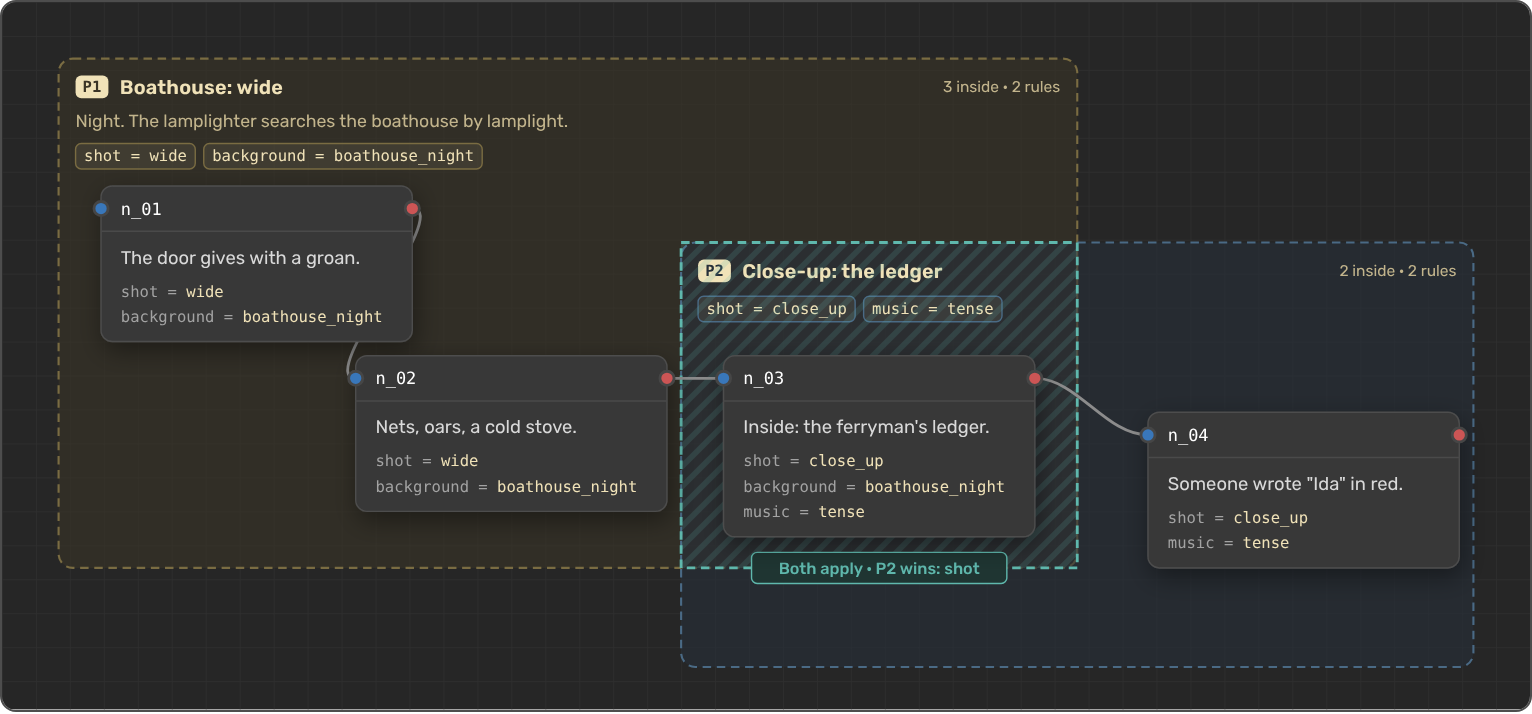
A wide shot of the boathouse at night is true for a dozen nodes in a row, yet until now its shot and background were typed into every one of them by hand, and one missed node shipped with the wrong camera. Meta Areas, now live in the Dialogue Builder, are notes you draw on the canvas around the nodes they are about. Give one meta rules, and every node inside gets those values on its own.
What's new
- Notes on the canvas. Click Meta Area next to + Node, or press N, and write a title and a note in the inspector. Pick Note, Blue or Green. Drag an area by its header or any empty part, and resize it from the corner. Nodes never move with it.
- Meta rules. Add rules such as
shot = wideandbackground = boathouse_nightto an area, and every node whose header sits inside it gets those values. It happens when you draw, move or resize the area, and when you create or move a node into it. - Locked fields. In the node inspector, the fields an area set are locked and say where they came from, like "from Boathouse: wide P1". Click the area's name to select it.
- Keep on leave. By default a node that leaves an area loses the values it got from it. Turn on Keep Meta Area values when a node leaves and it keeps them as its own, editable values.
- Priority and conflicts. Areas can overlap. Where two set the same field, the higher priority wins, and a striped band says so, like "Both apply · P2 wins: shot". Two areas with the same priority that disagree are a conflict: the node gets a conflict chip and that field stays empty until you solve it.
- Toast with Undo. After every change, a short toast says what happened to which node, like "n_03 left the area and lost shot, background", with Undo next to it.
- History. The History button in the canvas toolbar lists the changes Meta Areas made to node values while the dialogue is open, each with its own Undo.
- Show or hide. Hide Meta Areas gives you a clean canvas while you write. Hidden areas still apply their rules.
Read the guide
We wrote a step-by-step guide that sets the shots of one dialogue from a small harbour mystery, from the first area to a solved conflict: Notes and Meta Data on the Canvas with Meta Areas. It ends with a checklist you can follow for your own dialogue.
Try it
Open a dialogue in LoreHub, add a shot field to the Meta schema, and draw your first Meta Area around a scene. If something feels off, tell us on Discord or Reddit.