Pick, upload and frame pictures right in the field
A character's portrait, a city's banner, a faction's sigil: Image fields are where your art lives on a document. Until now you picked a picture by its file name from one long list, and it always showed cropped around the centre. Now you see thumbnails, upload from the field itself, and choose exactly which part of the picture shows.
What's new
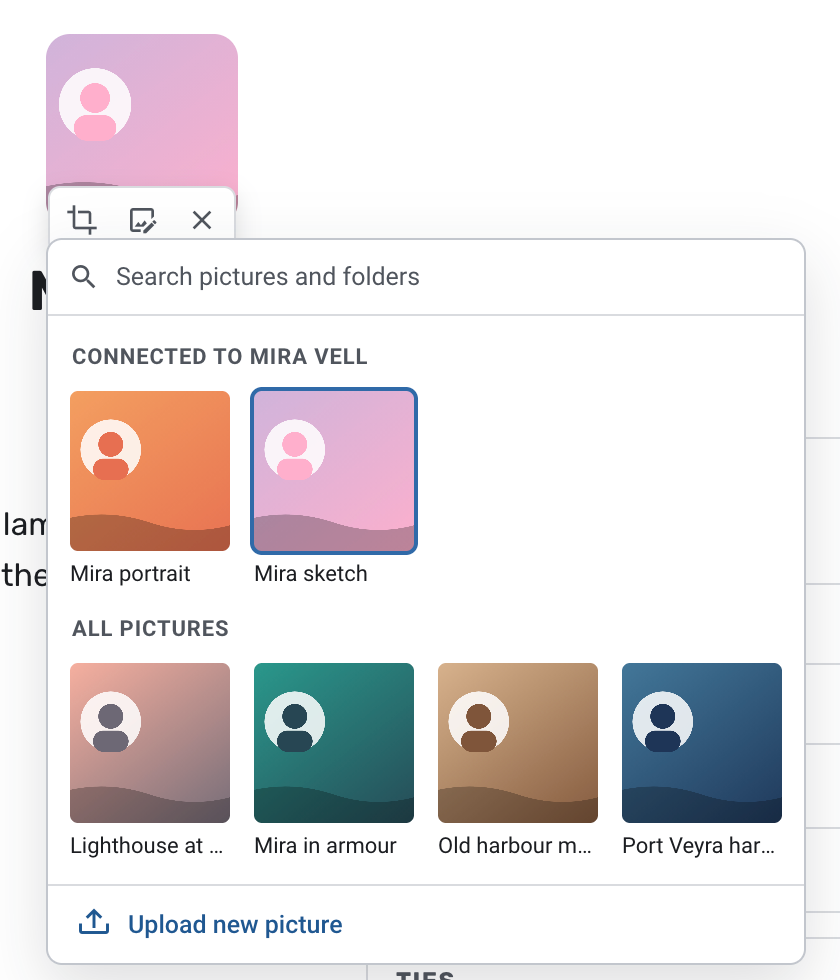
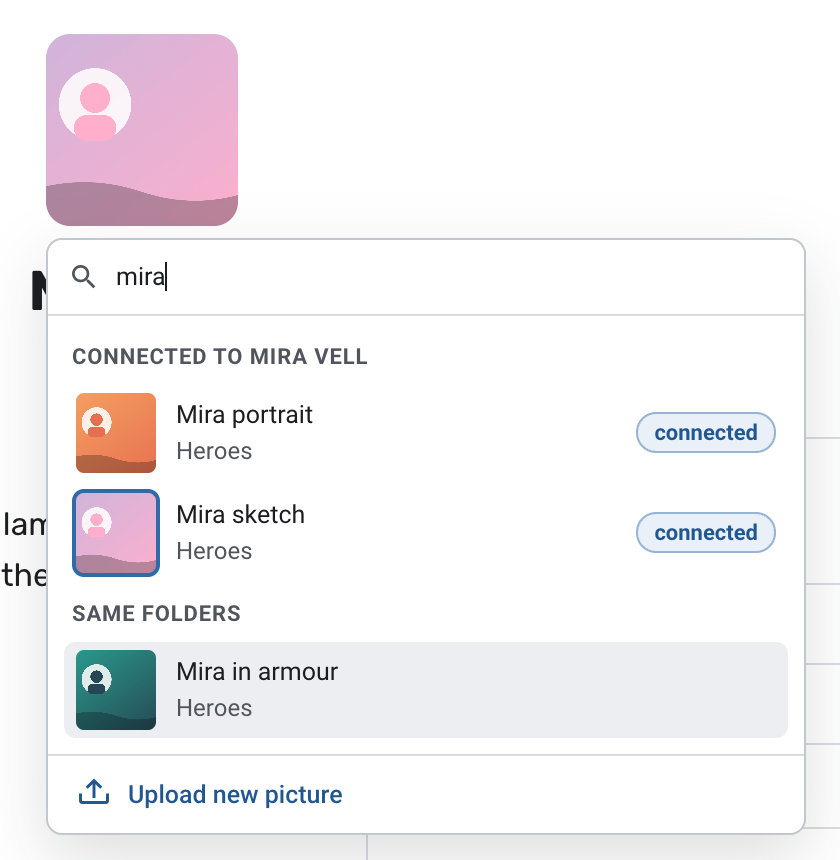
- A picker with thumbnails. Click an Image field and you see pictures, not file names. The ones already on this document come first, then the ones you uploaded lately. Type to search picture and folder names: results are grouped as Connected to this document, Same folders and Rest of the world, and each one shows its folder. Arrow keys, Enter and Esc work too.
- Upload from the field. Choose Upload new picture in the picker, or drop a file on the field. Name it, pick a folder (LoreHub suggests the one that holds this document's other pictures) or make a New folder…, and click Upload and use.
- Pictures stay with the document. A picture you put in a field also goes into the document's Images block, with Undo if you picked the wrong one. When you clear or swap it, you choose whether to Keep it there or Remove it. Each picture in the Images block shows which field uses it.
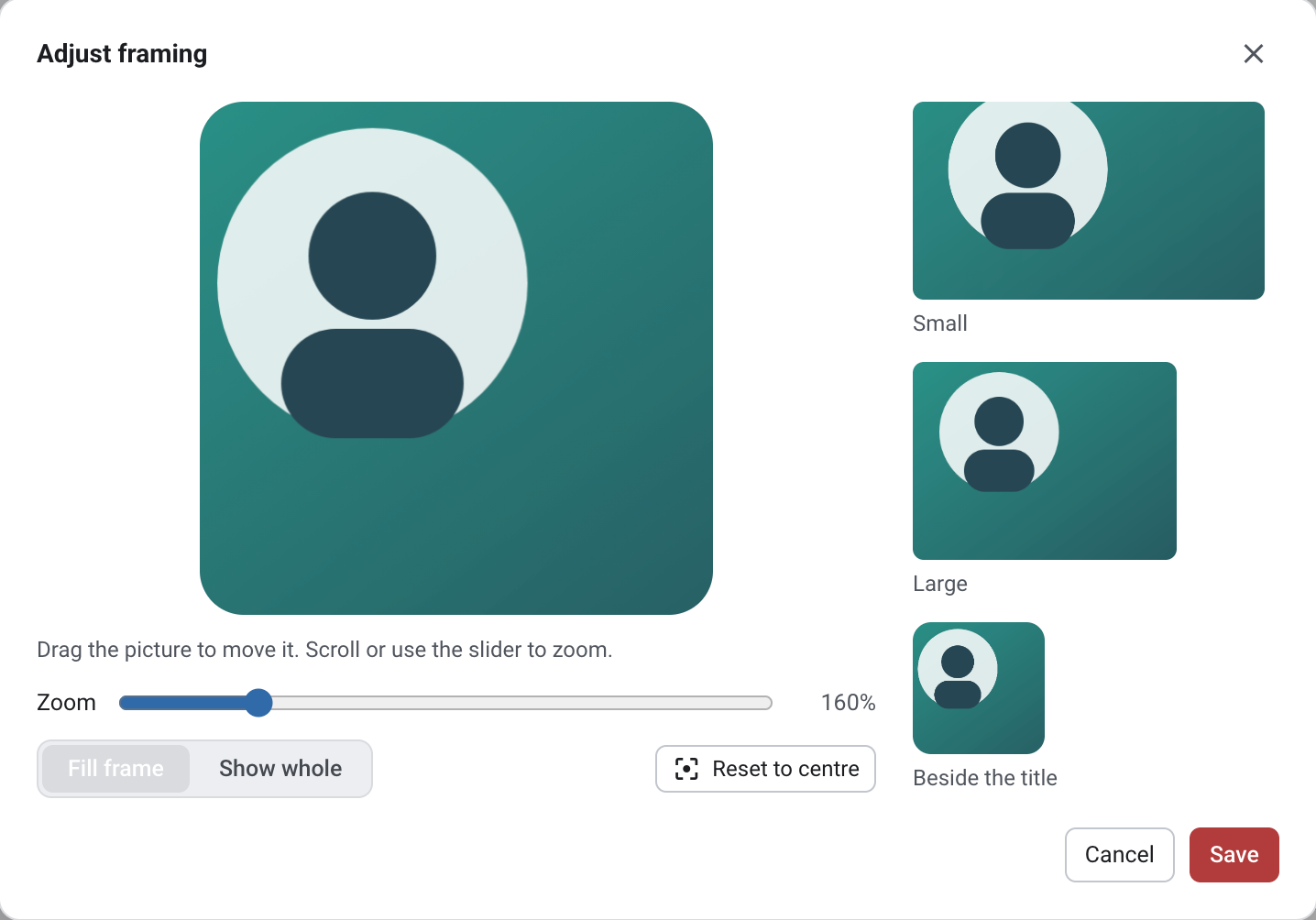
- Framing. Hover a picture and choose Adjust framing. Drag to move it, zoom up to 400%, and choose Fill frame or Show whole. You see it at once in all three shapes: small, large and beside the title.
- The avatar above the title. A field set to Avatar above the title in the template now shows its picture above the document's name.
How to use it
- Add an Image field to a template, for example Portrait as Avatar above the title.
- On a document, click Pick a picture, then pick one or choose Upload new picture.
- Hover the picture and choose Adjust framing to put the face where you want it.
The step-by-step version is in the Help Center: Give a character a portrait.
For your game
Framing goes into the field's value. A picture with the default framing is still just the image id, so nothing changes for you. A framed one is {"id":"…","x":30,"y":60,"zoom":1.4,"fit":"cover"}: x and y are the focus point in percent, zoom runs from 1 to 4, and fit is cover or contain. Agents and the API can set it the same way, and setting a picture through them also connects it to the document.
Try it
Image fields are available on every plan. Open a world in LoreHub and give your main character a portrait. Tell us what you'd like next on Discord or Reddit.