
Sync Your Dialogues to GitHub
Writers change dialogue every day, and the game only gets those changes when somebody exports them and commits the files. That step is easy to forget, so builds ship old lines, and programmers can't see what changed since the last export.
Game Sync does it for you. Connect a game to a GitHub repository once, and LoreHub writes every dialogue of that game into a folder there, as JSON, and opens a pull request with the changes. A programmer reviews the diff and merges it like any other change. Writers keep working in LoreHub and never need a GitHub account.
How it works
Game Sync works per game. Each game in your world can go to its own repository and folder, or stay off. When a sync runs, LoreHub exports the game's dialogues, compares them with what is already in the repository and, if anything changed, makes one commit on its own service branch and opens a pull request into your base branch.
- LoreHub never commits to your base branch
- One pull request per game, kept up to date
- Only inside the folder you choose
- One way: LoreHub to GitHub
In this guide we connect the game LDOD2 to the repository lostwood-games/ldod2, a Unity project, and put its dialogues in src/story, next to the game's code.
1. Connect GitHub to your world
Open your world and go to Integrations in the world menu. Click Connect GitHub. GitHub opens and asks where to install the LoreHub app: your personal account or an organisation you manage. Then it asks which repositories LoreHub can reach. Choose Only select repositories and pick the game's repository, unless you want LoreHub to see all of them.
GitHub sends you back to LoreHub, and the account shows on the Integrations page with the repositories it can reach. To add or remove repositories later, click Manage on GitHub. LoreHub picks up the change by itself.
Only world owners can connect and disconnect GitHub accounts and set up a game's sync, and only the person who connects needs a GitHub account with the right to install apps. Everyone in the world can see what is connected.
| The LoreHub app can | Why |
|---|---|
| Read and write repository contents | To commit the dialogue files to its service branch |
| Read and write pull requests | To open the pull request and keep its description up to date |
| Read metadata | To list the repositories and branches you can choose from |
2. Set up sync for a game
Below the GitHub accounts, the Game Sync section lists the games of your world. Click Set up sync next to one. The dialogue has four parts.

| Setting | What it does |
|---|---|
| GitHub account | Which connected account to use, if your world has more than one. |
| Repository | Only repositories the LoreHub app can reach are listed. If yours is missing, add it with Manage on GitHub. |
| Base branch | The branch the pull request goes into. Leave it empty to use the repository's default branch. |
| Folder | Exactly where the files go, for example src/story. Leave it empty for lorehub. Dialogues in a route scope go into subfolders named after their scopes (see step 4). |
| When to sync | Only when I press Sync now, Every hour, when something changed or Every day, when something changed. |
| Service branch (Advanced) | The branch LoreHub writes to. It defaults to lorehub/<game> and must differ from the base branch. |
Click Save. Only world owners can set up, edit and turn off a game's sync. Anyone who can edit the game, writers included, can press Sync now.
Give each game its own folder. Two games writing to the same folder would each treat the other's files as their own.
3. Run the first sync
Click Sync now. The status changes to Queued, then Syncing…, and then Synced with a link to the pull request. You don't have to wait on the page: the sync runs in the background, and the status updates by itself.
With an hourly or daily schedule, LoreHub checks the game on its own and syncs only when a dialogue changed. If nothing changed, the status says Up to date and nothing is written to GitHub.
4. What lands in the repository
The folder gets a README.md at its root that says the folder is written by LoreHub, and one JSON file per dialogue, named after the dialogue's id. The files follow your story's route scopes: a dialogue in a scope goes into a subfolder named after that scope, inside the subfolders of the scopes above it, for example src/story/act-1/the-harbour/intro.json. A dialogue that isn't in any scope sits at the root of the folder. Each file is a dialogue in the Export Schema v2, the same JSON the Export tab gives you, so a dialogue player you already wrote for it keeps working.
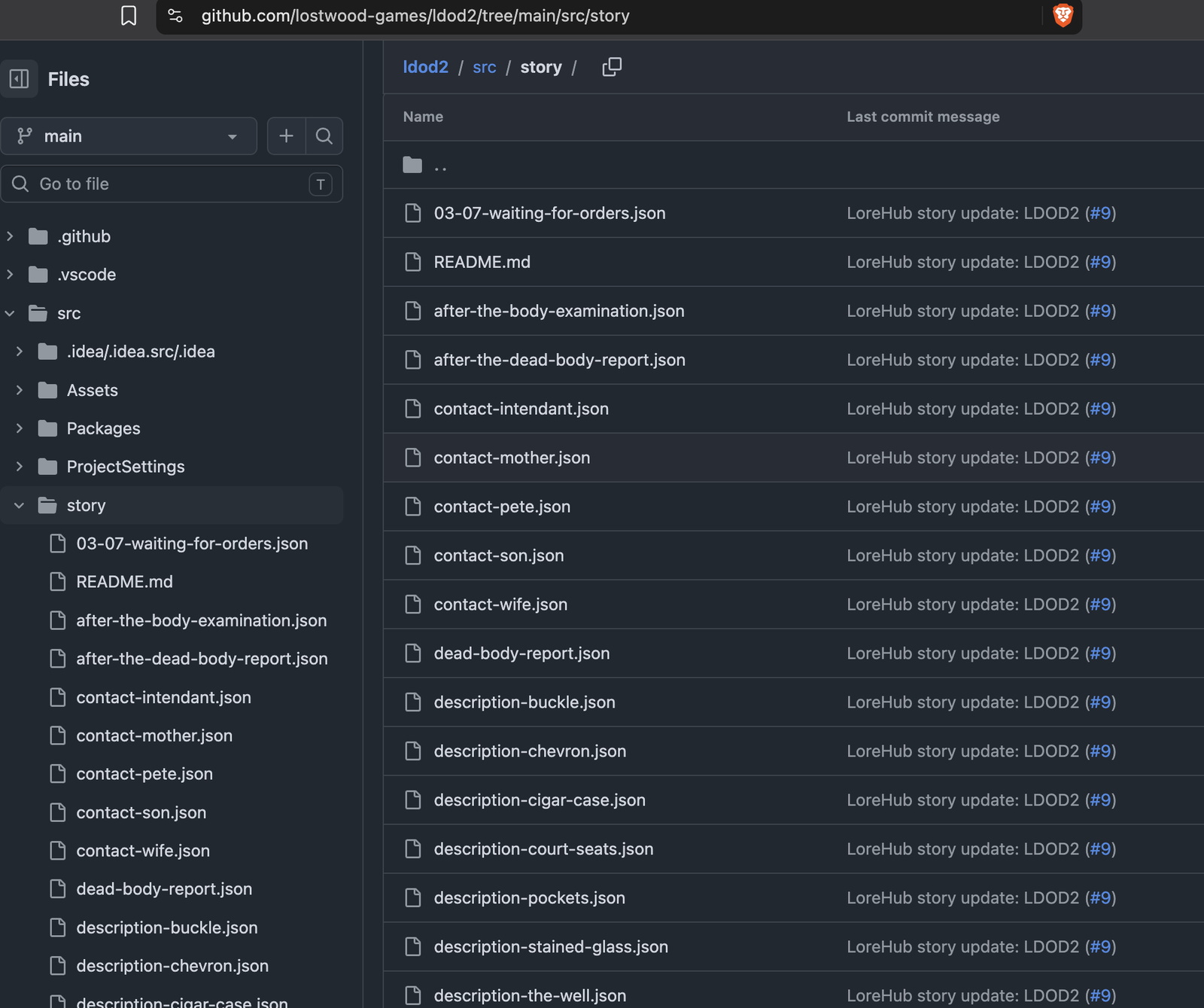
src/story, next to the Unity project's Assets and Packages. This sync ran before files followed route scopes, so every dialogue is at the root of the folder. The files are stable: the same story always gives byte-identical files, without timestamps or canvas positions. That is what keeps the pull request readable. When a writer changes one line, the diff shows one line.
| In LoreHub you | In the next sync |
|---|---|
| Add a dialogue | Its file is added |
| Edit a dialogue | Its file changes, and only its file |
| Delete a dialogue | Its file is deleted |
| Move a dialogue to another scope, or rename a scope | Its file moves to the matching subfolder |
| Change nothing | No commit, and the pull request is left alone |
LoreHub only deletes files it wrote itself. Anything else in the folder, and everything outside it, stays as it is.
5. Review and merge the pull request
The pull request is called LoreHub story update plus the game's name, and it is opened by the LoreHub app. Its description says which folder it writes to, what the last sync did (for example "3 changed, 1 added") and lists every file it touched.
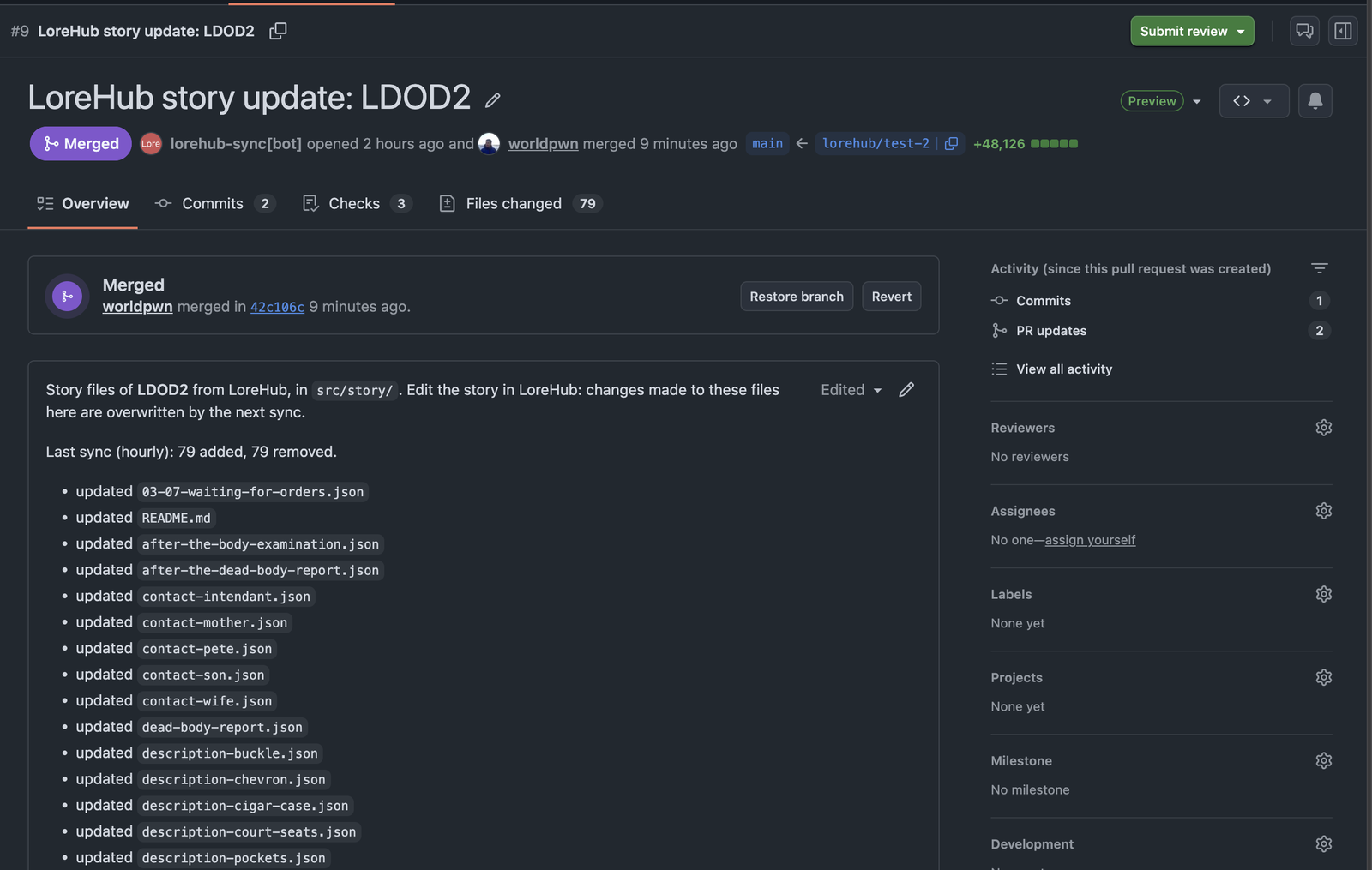
Review it like code. Your CI runs on it, so a test that loads every dialogue in your engine catches a broken file before it reaches the build. When it looks right, merge it on GitHub. LoreHub never merges for you.
- Before the merge, new syncs add commits to the same pull request.
- After the merge, the next sync with changes starts fresh from the base branch and opens a new pull request.
- If the pull request is closed without merging, the next sync opens a new one.

Sync is one way. Edit the story in LoreHub: changes made to the synced files in the repository are overwritten by the next sync. If a programmer needs to change a line, they ask the writer, or open LoreHub and change it there.
6. Keep an eye on it from the Stories page
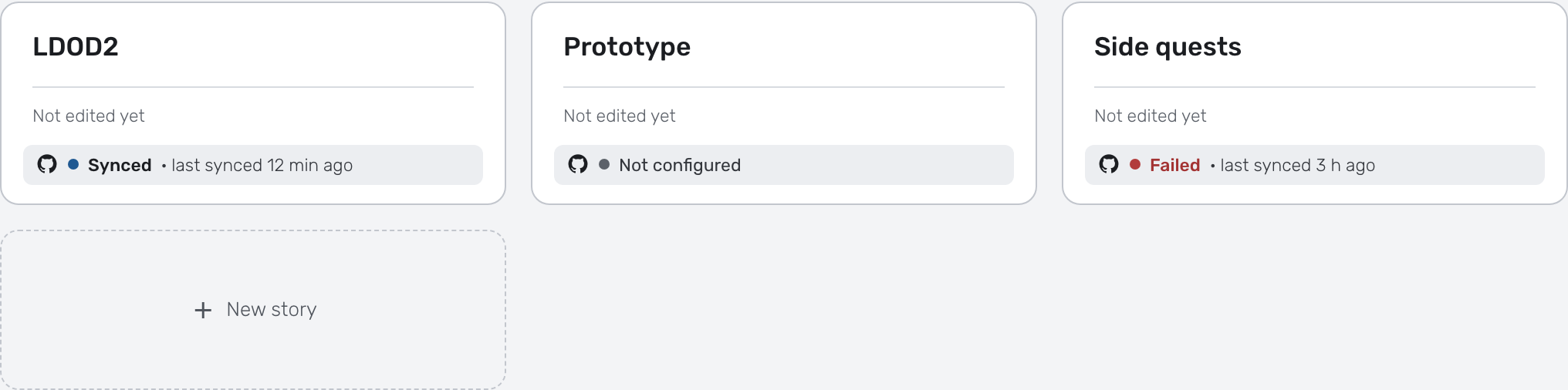
Each story card on the Stories page shows its game's sync status: Synced and when, Failed in red, or Sync not configured. Click the status to open the Integrations page.
A dialogue without a start node can't be exported, so the sync leaves it out. The Stories page lists those dialogues with "No start node. Link its start to the first node." Fix them and the next sync adds their files.
7. When a sync fails
A failed sync tells you why in plain words, on the Integrations page. GitHub being slow or down is retried for you a few times before a sync fails. Here's what the other messages mean:
The base branch doesn't exist
The branch was renamed or deleted on GitHub. Edit the sync and choose another base branch.
GitHub refused to update the service branch
A branch protection rule covers the service branch. Exclude lorehub/* from the rule, or choose another service branch.
GitHub can't find the repository
The repository was removed from the LoreHub app. Add it again with Manage on GitHub.
The LoreHub app was uninstalled or suspended
Connect GitHub again, or unsuspend the app on GitHub.
GitHub is not responding
Try again later. A failed sync leaves nothing half-written on the branch.
8. Turn it off
Turn off stops a game's sync. The files already in the repository stay there. To stop all writes from a world, click Disconnect on the GitHub account. That removes the link from this world only; to remove the app from GitHub as well, uninstall it there.
A checklist for your own game
I. Is the LoreHub app limited to the repositories it needs?
Choose Only select repositories when you install it.
II. Does each game have its own folder?
Put the files where the engine loads them, like src/story or Assets/Dialogues.
III. Can LoreHub push its service branch?
Leave lorehub/* out of your branch protection rules.
IV. Does CI check the dialogues?
A test that loads every JSON file in the folder and its subfolders catches problems before the merge.
V. Does the team know where to edit?
In LoreHub. The repository is the delivery, not the source.
Exporting by hand is a step someone forgets. With Game Sync the story arrives as a pull request, the build gets the lines the writers wrote, and the diff shows exactly what changed.
Try it in the LoreHub app, read about the Export Schema v2 and the Unity tutorial, and for feedback, please join Discord.